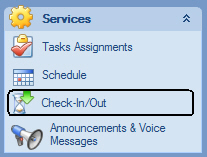
The "Check-in/outs" screen is provided for one of the core features of ASR: viewing current visits status for the entire company for a given day and maintenance of visits in ASR. To open the screen select "Check-In/Out" in the ASR Explorer Bar:
The Check-In/Out screen:

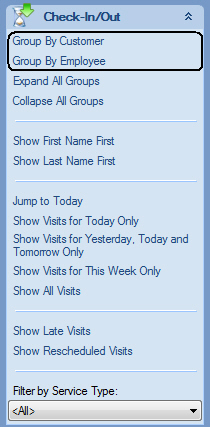
The Check-In/Out screen shows all visits for all Customer or Employee during a day. The screen can show visits grouped by Customer or Employee. Select "Group By Employee" or "Group By Customer" on the "Check-In/Out" section of the ASR Explorer Bar displayed when the screen is active:
The day of the visits displayed on the screen is shown in the upper portion of the screen:

Each cell in the shown time-line represents an hour and each rectangle represents a visit with information about the visit. Moving the mouse over a visit will show a addition tool-tip information about the visit. The blue bar above each visit indicates scheduled visit duration
In the schedule screen the following actions can be performed:
Checking-in:
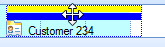
Click on a visit you want to record a check-in for and right mouse click to open the context menu. Select "Check-in..." or "Check-in As Scheduled". Checking-in "as scheduled" will immediately record a check-in using the scheduled check-in time per Care Plan. A visit that has a check-in recorded for it will appear with a yellow bar:
Selecting "Check-in..." will open the check-in dialog:
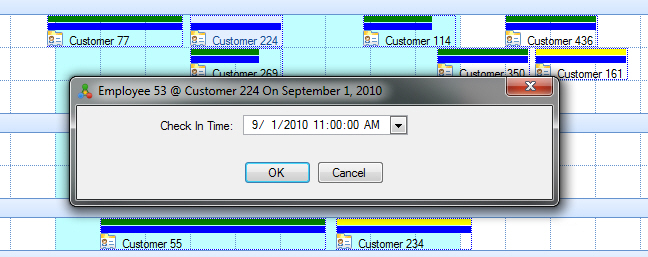
In this dialog user can specify actual check-in time that took place.
Checking-out:
Click on a visit you want to record a check-out for and right mouse click to open the context menu. Select "Check-out..." or "Check-out As Scheduled". Checking-out "as scheduled" will immediately record a check-out using the scheduled check-out time per Care Plan. A visit that has a check-out recorded for it will appear with a green bar:

Selecting "Check-out..." from the context menu will open the "check-out" dialog:
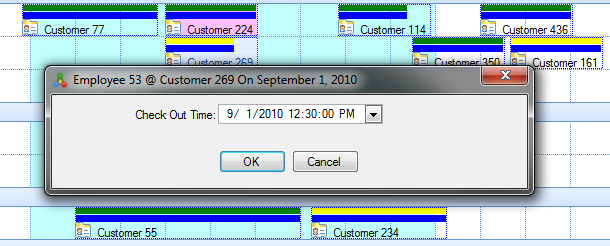
In this dialog user can specify actual check-out time that took place as well actual tasks that were performed during the visit.
Canceling a visit:
Note: canceling a visit is not the same as ending visits when the Care Plan is changing. Use the Tasks Assignments screen to change the care plan. Canceling visits in the Check-In/Out screen is done only for one-off visit cancelation per, e.g., customer request.
To cancel a visit, select the visit you want to cancel and right-mouse click to open the context menu. Select "Cancel Visit..." from the menu. The Cancel Visit dialog will appear:
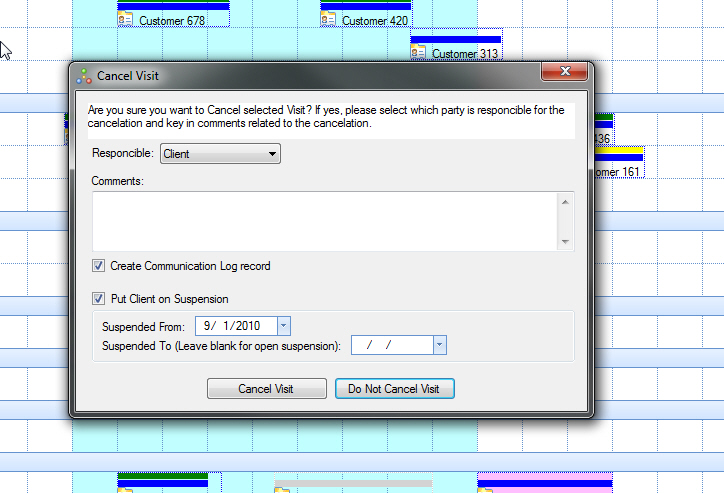
In the dialog user can select who's responsible for the cancelation of the visit, optionally create a Communication Log record for the client to record the cancelation event and other notes as well as optionally put the client on suspension if applicable. Once a visit is cancelled it will appear greyed-out on the screen:

If the cancelation was done in error, it is possible to re-enable the cancelled visit by selecting "Re-Enable Visit" from the right-mouse-click Context Menu.
Rescheduling a visit:
Note: rescheduling a visit is not the same as changing visits schedule when the Care Plan is changing. Use the Tasks Assignments screen to change the care plan. Rescheduling visits in the Check-In/Out screen is done only for one-off visit rescheduling per, e.g., customer request.
To reschedule a visit, select the visit you want to reschedule and right-mouse click to open the context menu. Select "Reschedule Visit..." from the menu. The Reschedule Visit dialog will appear:

In the dialog users can set the new date/time of the visit, optionally create a Communication Log record for the client about the visit rescheduling event and other notes. Also in this dialog the visit can be assigned to a different employee other than the original Employee of the visit. Again, this will not create a record in the Tasks Assignments in ASR since this is not a change to the Care Plan but rather a change for a one-off visit.
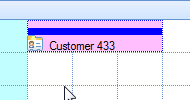
Alternatively, it is possible to drag-and-drop a visit in the Check-In/Out screen to another time, which may be an easier way of recording the visit being rescheduled. In either case, rescheduled visit will appear a rosy background to visually indicate that the visit has been rescheduled:
To change duration of the visit being rescheduled, type in the new number of hours the visit should last in the "Visit Duration (hours)" text-box of the reschedule dialog.
If the visit was rescheduled in error, it is possible to restore the original schedule by selecting "Restore original schedule" from the right-mouse-click Context Menu.